Rewards older than 6 months are not displayed in the Twitch inventory! You will receive all rewards if you complete the linking according to the instructions.
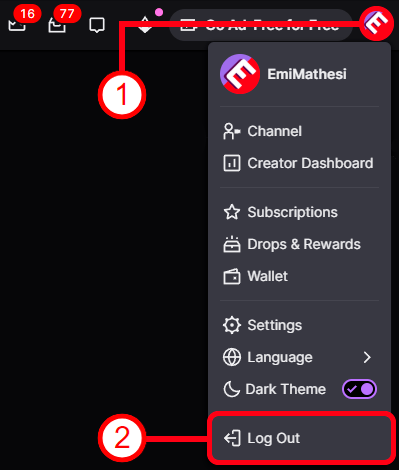
1️⃣ If you are logged into another Twitch account before linking — you need to log out of it on this page: https://www.twitch.tv/
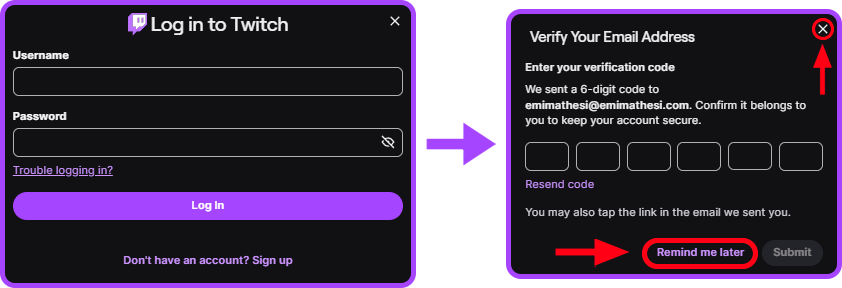
2️⃣ After purchase, you received the login and password for the Twitch account. Use these details to log into Twitch on this page: https://www.twitch.tv/drops/
You DO NOT need to verify the email. Click “Remind Me Later” or close the window using the cross button.

If you see this error — check that there are no extra spaces at the beginning or end of the password. Also make sure the login and password were copied completely, without missing or extra characters. It is recommended to copy and paste the details instead of entering them manually.

If you see this error — try using the latest version of one of the following browsers: Google Chrome, Mozilla Firefox, Microsoft Edge, Apple Safari, Opera or Opera GX. If this does not help — try changing your network and/or device.
3️⃣ Successfully logged into the Twitch account? Now log into your Warframe account where you want to receive the rewards: https://www.warframe.com/login
4️⃣ Logged into your Warframe account? Now open the “Account Management” page: https://www.warframe.com/user
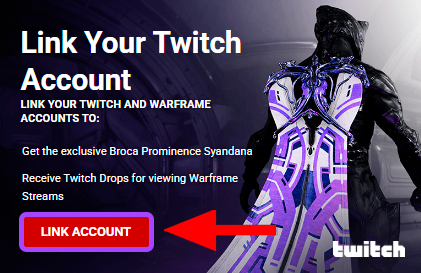
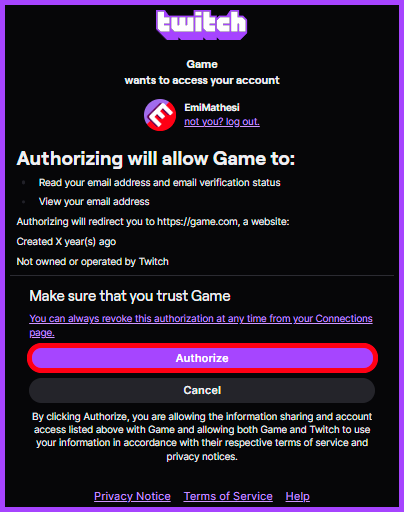
5️⃣ Click “LINK ACCOUNT” → “Authorize”.
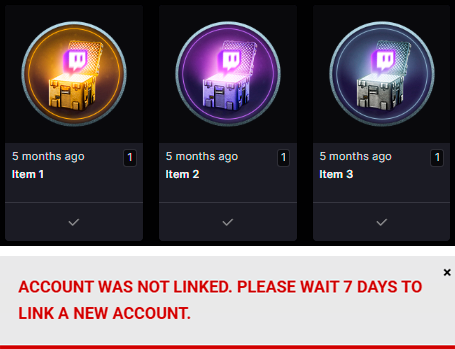
If you receive this error — it means you recently linked another Twitch account and 7 days have not passed yet since the last link. Even if the linking failed — checkmarks may still appear in the Twitch inventory because a linking attempt was made. After the number of days shown in the error message has passed, you will be able to link the purchased Twitch account and receive all rewards in full.
6️⃣ If you are redirected to a page saying “Account has been successfully linked.” — everything worked successfully. To receive the rewards, you MUST RESTART THE GAME!
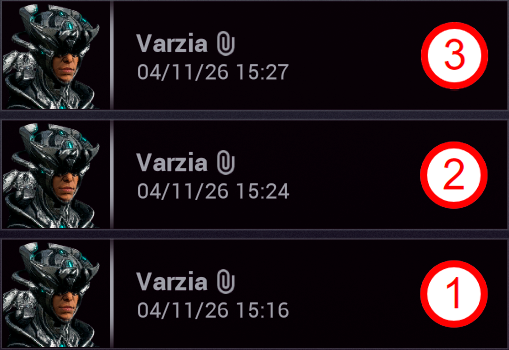
In large bundles, rewards are split into multiple mails. The first mail arrives immediately after restarting the game. The remaining mails may arrive later along with additional game restarts.
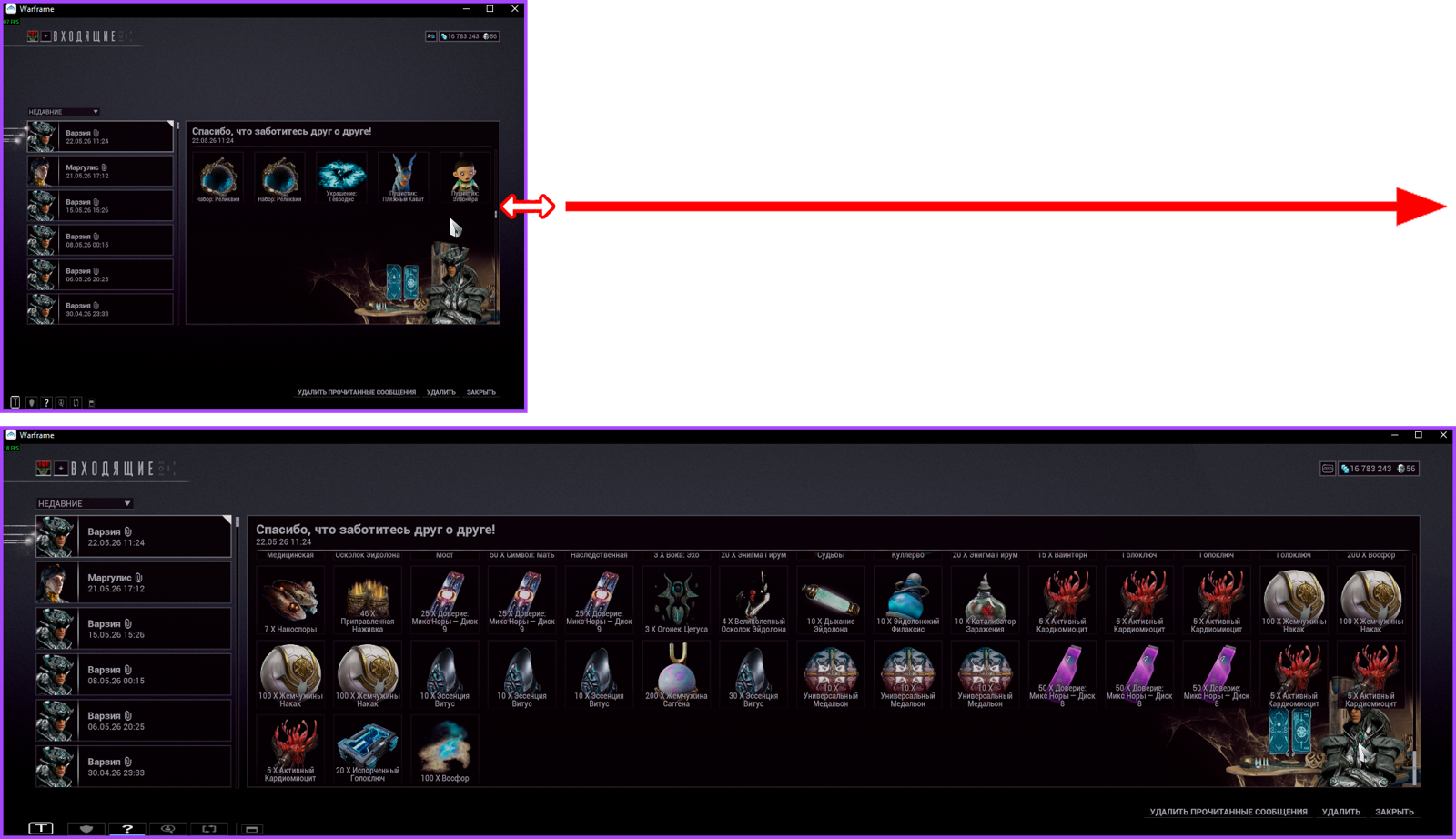
The in-game mail may not display all rewards if there are too many of them. In this case, launch the game in 800×600 windowed mode and stretch the window horizontally, or simply check that all rewards were received via: “ESC” → “EQUIPMENT” → “INVENTORY”.
✔️ Every 7 days, you can purchase and link a new Twitch account! You will receive all listed rewards even if you have already obtained them before, except for rewards marked with (❗) — these can only be obtained once.