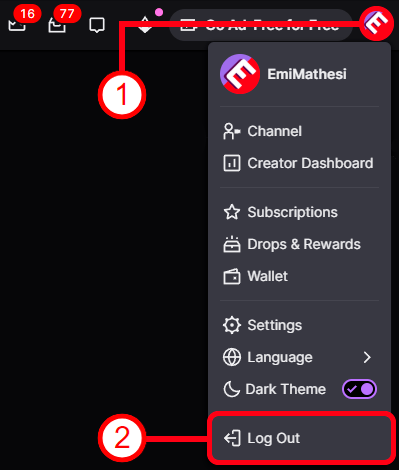
1️⃣ If you are logged into another Twitch account before linking — you need to log out of it on this page: https://www.twitch.tv/
2️⃣ After purchase, you received the login and password for the Twitch account. Use these details to log into Twitch on this page: https://www.twitch.tv/drops/
You DO NOT need to verify the email. Click “Remind Me Later” or close the window using the cross button.
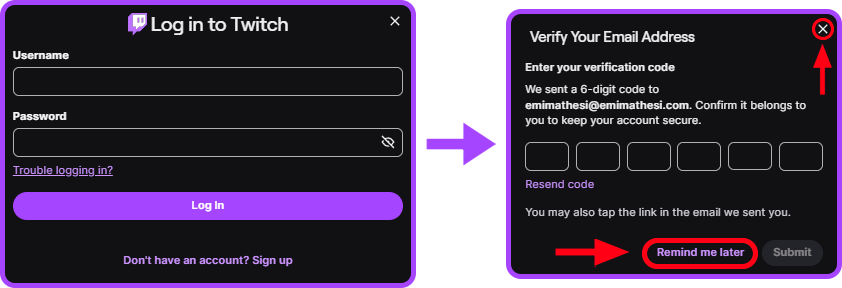

If you see this error — check that there are no extra spaces at the beginning or end of the password. Also make sure the login and password were copied completely, without missing or extra characters. It is recommended to copy and paste the details instead of entering them manually.

If you see this error — try using the latest version of one of the following browsers: Google Chrome, Mozilla Firefox, Microsoft Edge, Apple Safari, Opera or Opera GX. If this does not help — try changing your network and/or device.
3️⃣ Successfully logged into the Twitch account? Now open the account linking page: https://twitch.facepunch.com/connect
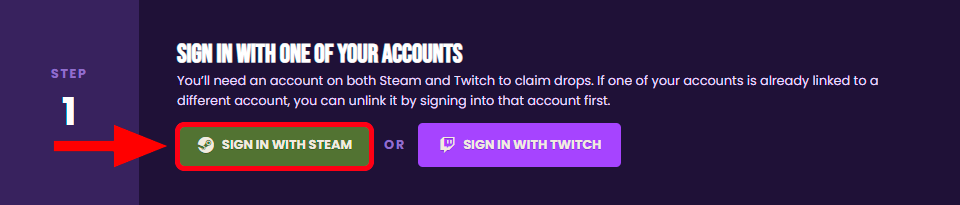
4️⃣ First, link your Steam account where you want to receive the rewards: click “SIGN IN WITH STEAM”.
You MUST link STEAM first, and only then TWITCH. If you do it the other way around — the “ACTIVATE DROPS” button in step 6️⃣ will not work!
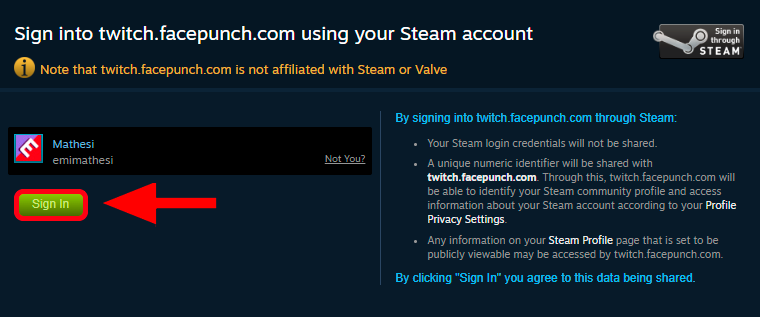
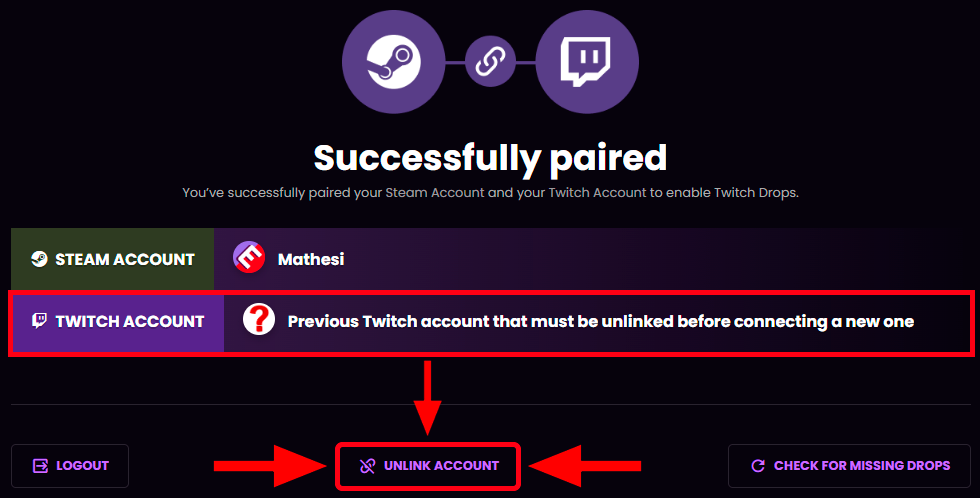
If you immediately see the page shown below — click “UNLINK ACCOUNT” and return to step 4️⃣. This page appears if another Twitch account was previously linked to your Steam account.
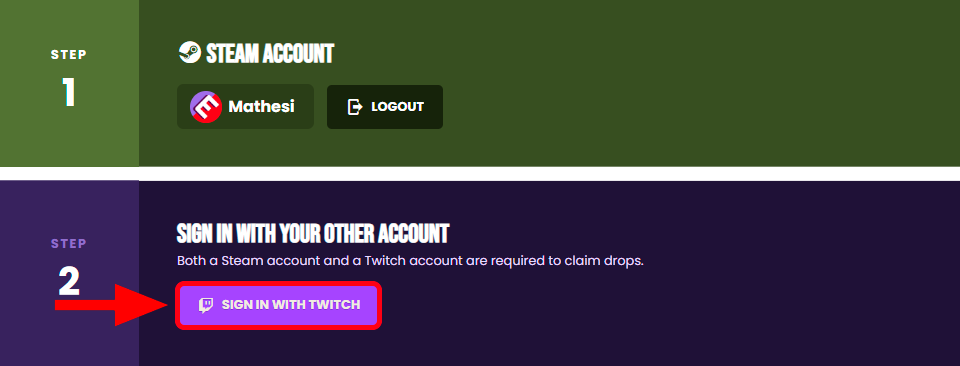
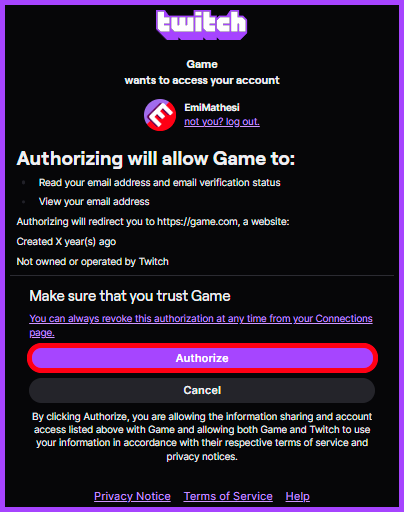
5️⃣ Linked your Steam account? Click “SIGN IN WITH TWITCH” → “Authorize”.
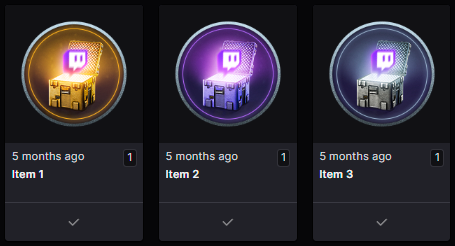
If checkmarks appear in the Twitch inventory — it means the Twitch account was linked successfully. However, the checkmarks DO NOT mean that the instruction is fully completed or that the rewards were already transferred to the game. The date shown on the items only indicates when the rewards were collected on the Twitch account and DOES NOT mean that these rewards were activated by someone else (e.g. 1/7/30/180 days ago). To complete the activation, continue following the instructions.
6️⃣ Now click “ACTIVATE DROPS”.
If the “ACTIVATE DROPS” button does not work — it means another Twitch account is already linked to your Steam account and prevents a new one from being linked. Click “LOGOUT”, return to step 4️⃣ and unlink the old Twitch account.
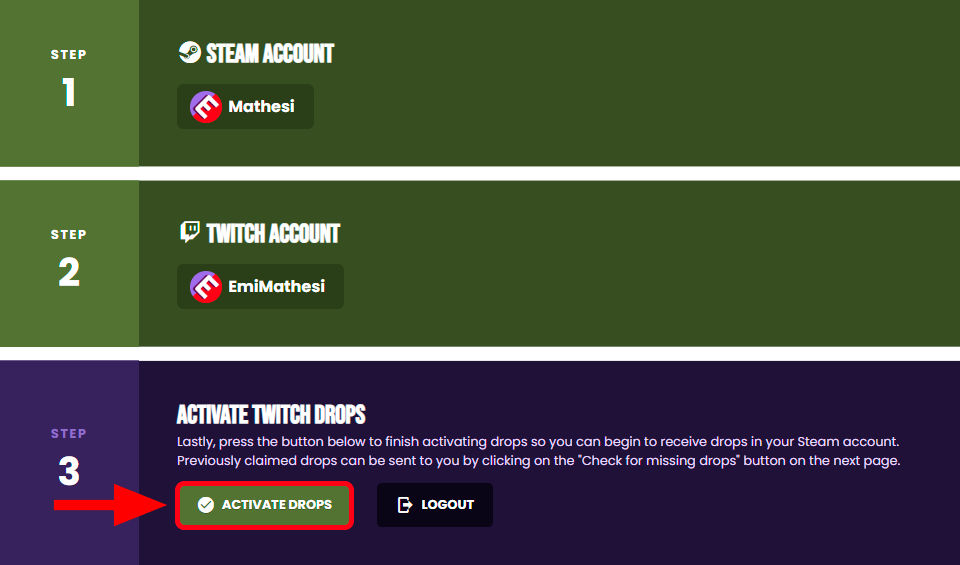
7️⃣ Click “CHECK FOR MISSING DROPS”.
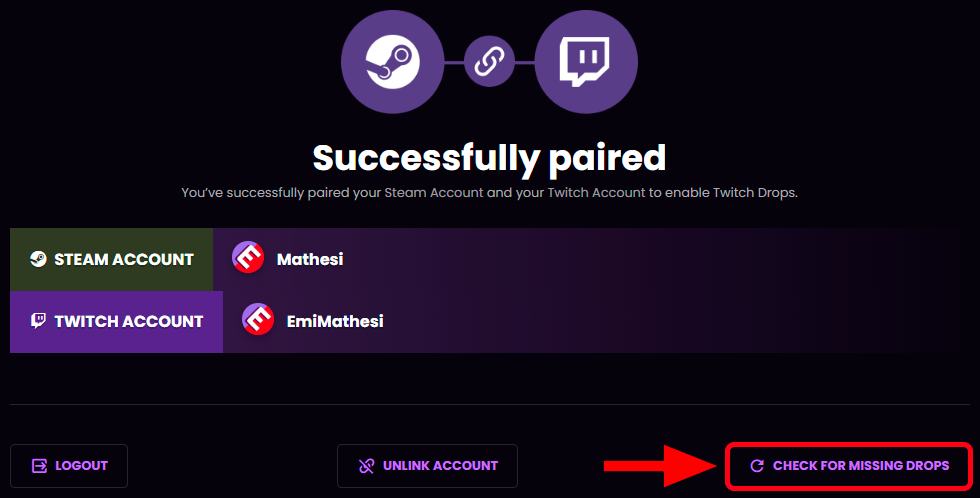
8️⃣ If you see the message: “Attempting to give your Steam account X Twitch Drops...” — everything worked successfully. Restart the game and check if the rewards appeared in the in-game inventory.
You must check for the skins ONLY IN THE IN-GAME INVENTORY! The skins may appear in the Steam inventory much later!
